
There are two platforms for the users to access their online trading account, the web platform or mobile app.
Web platform
Default interface
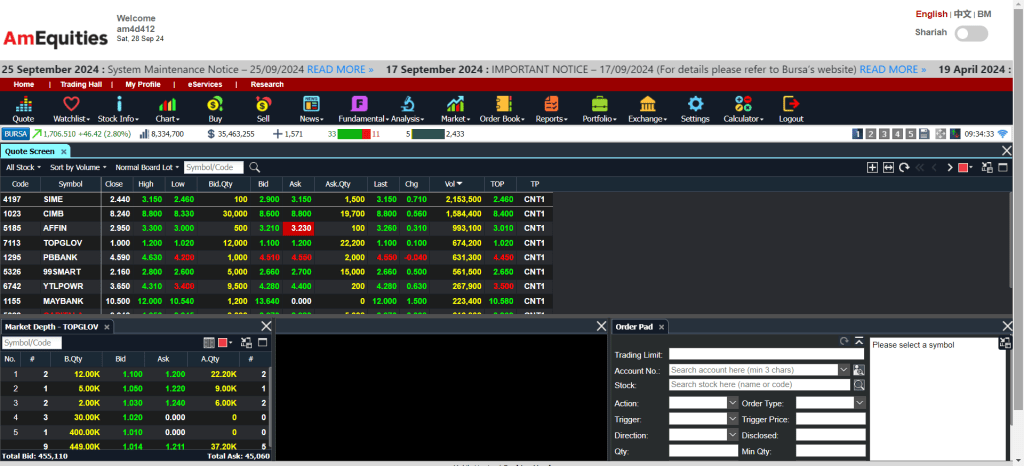
Once you log in, it would shown you the home page with quotes ready, with default settings of top volume, market depth and order pad shown. You may further edit the layout as per your preference.
Toolbar
You may explore further by going through the tool bars on top which you may find helpful when you are looking for account management settings and tools to perform analysis prior your investment decision.

Items to explore
Account management
- My Profile – To place change PIN or Password
- eServices – For account management instructions (e.g. ewithdrawal, estatements, etc.)
- Research – To access daily analysis report prepared by AmInvestment analyst team
Trading toolbar
- Watchlist – Create your customized watchlist
- Chart – Access real-time analysis chart
- Fundamental – Access financial data generated by Morningstar
- Market – To perform market performance overview by sector
- Order book – For verification of active or historical orders
- Reports – For viewing of client summary (Cash balance or contra status)
- Portfolio – To view portfolio and realized/unrealized profit
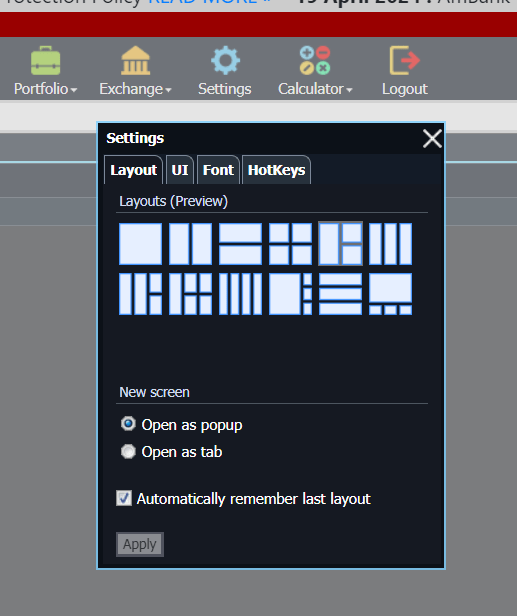
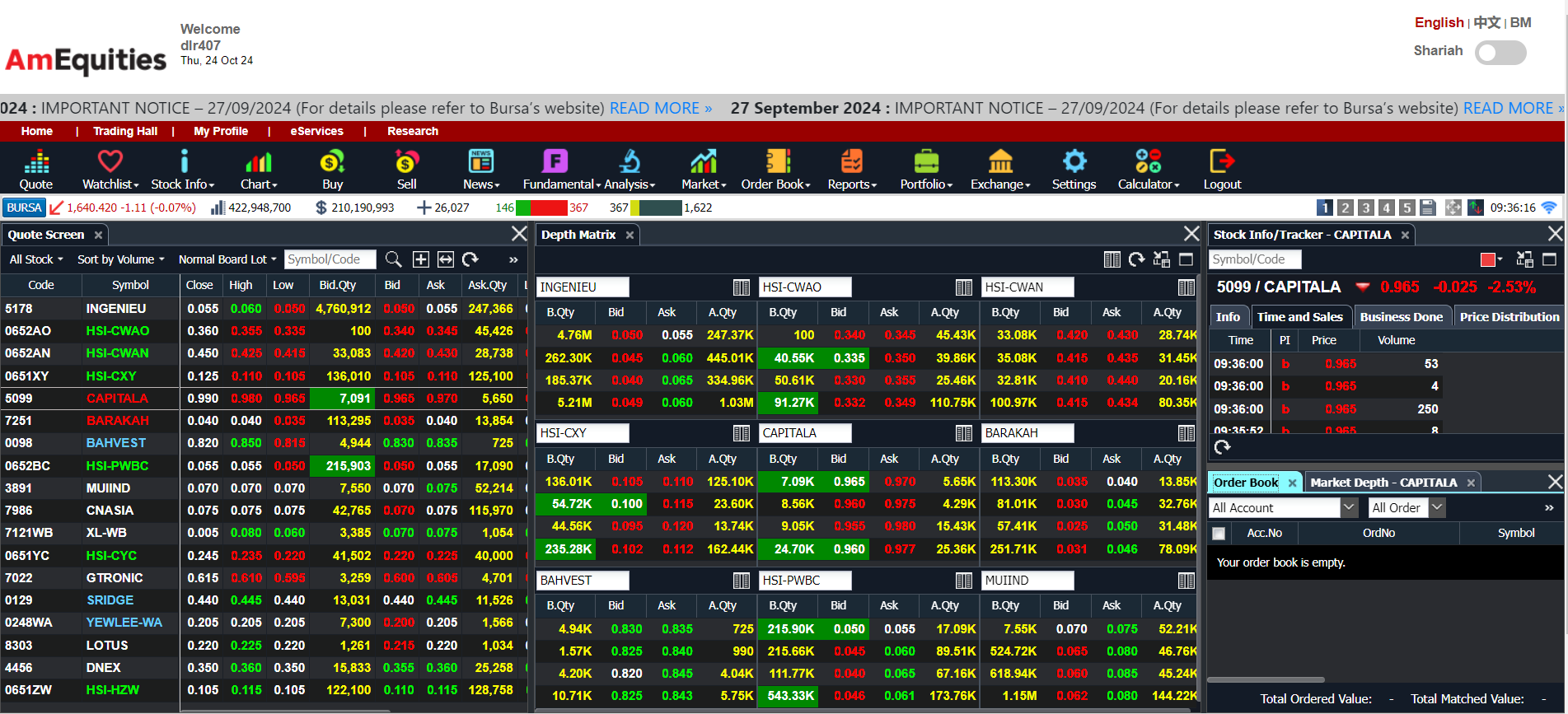
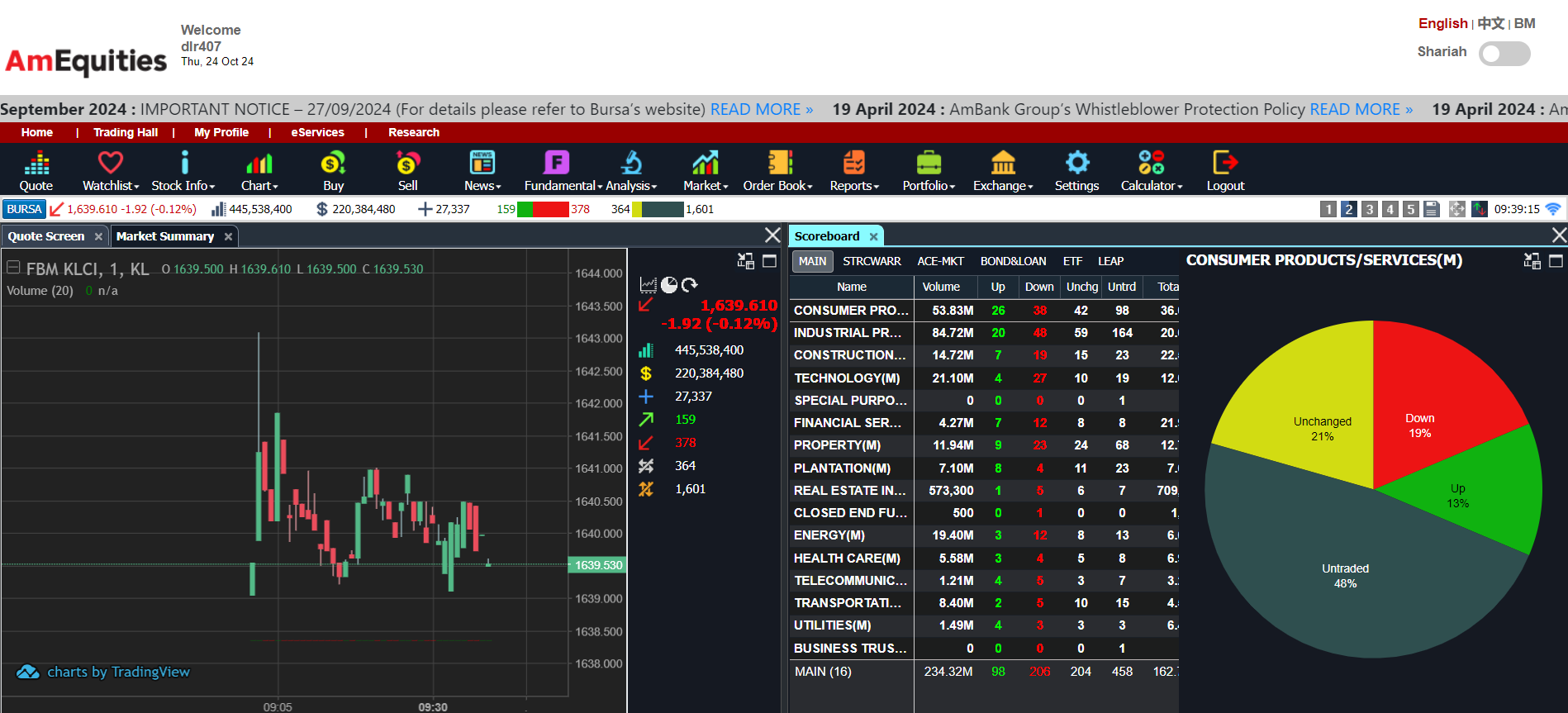
I’ll leave the above for you to explore yourself as it’s pretty basic on navigation. Next, for more advanced user, you can actually customize the layout based on your preference of usage. Just go to settings and choose the layout you want for docking in new widgets.
Mobile platform
The mobile platform is relatively simplified compare to the web platform, it’s mainly designed for daily casual market or portfolio review.
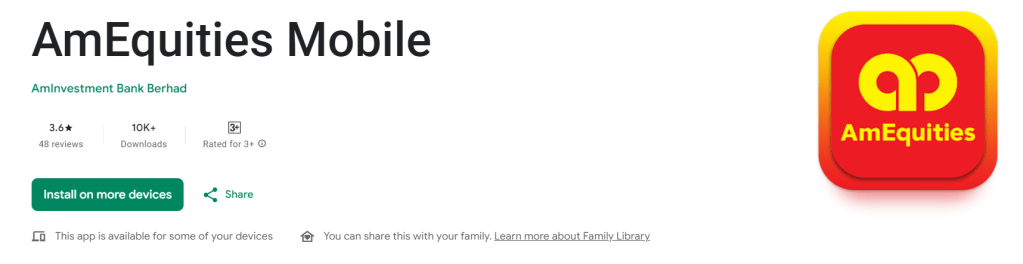
You can download it in both Appstore and Google Playstore.
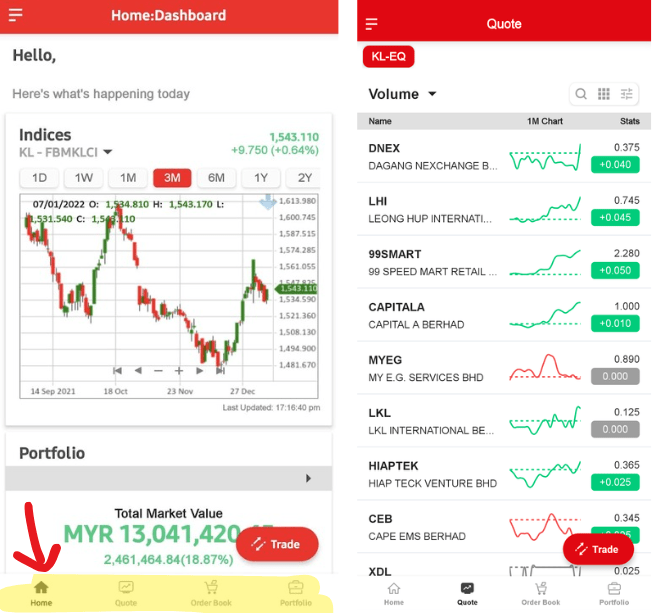
You will see the Home page when you first log in and it would be in a layout of default tools. You should be able to see the KLCI performances (Indices which track Bursa performance), customized checklists and news etc.
Toolbars
There are four major pages you may access at the bottom of the platform, which you can navigating from:
- Home – For your convenience to track your watchlist or portfolio
- Quote – To track active counters by showing top volume stocks on default
- Order book – To verify your historical order or opening order status
- Portfolio – To track your gross realized or unrealized profit

To search or place order for a counter, you may access to it by clicking the red button. Then it should be prompting you with the order pad with market depth to review.
Order pad (Similar in both platform)

To place an order, you would require to understand how to place an order through the order pad. For the ease of understanding, the bid (buyer, someone queuing to buy) and ask (seller, someone queuing to sell) price are the immediate market price that you can match.
Information required to be customized and decided would be as per below:
- Quantity – this would be on lot size (100 units per lot) as per default setting
- Price – the price you prefer to get, for to buy immediate market price, key in the ask price; vice versa.
- Validity – can be normal day order or can place for GTD (Good-Till-Date) order. To place a GTD order, you can pick any date with a maximum of 30 days excluding weekends or public holiday.
After all the order info inputted, you may key in your six-digit pin and click on the BUY button to place an order. An order confirmation would pop out for you to double check the order details and your order would be sent out once you confirmed the prompt.

To ensure the post is not too hectic to read.. that’s all I would like to highlight for new joiners!
I believe above should be suffice, but if you have any issue regarding the platform, don’t hesitate to contact me! I’m always here to help.
 duitako.
Leave a comment